Say Goodbye to Manual Entry: Introducing Bulk MID Actions

February 9, 2026

Managing your Merchant IDs (MIDs) shouldn’t feel like a full-time data entry job. We know that as your business scales, the manual effort of onboarding and updating MIDs can become a significant bottleneck.
That’s why we’re thrilled to introduce Bulk MID Actions—a powerful new feature in your Dashboard designed to help you move faster, reduce errors, and reclaim your time.
Why Bulk Actions?
Until now, managing multiple MIDs often required individual entries, which is time-consuming and prone to typos. With Bulk MID Actions, you can now handle your entire to-do list in one go. Whether you are onboarding new merchants, offboarding others, or reassigning existing IDs, you can process everything via a single, unified upload.
How It Works:
We’ve integrated this tool directly into your existing workflow. Here is how to get started:
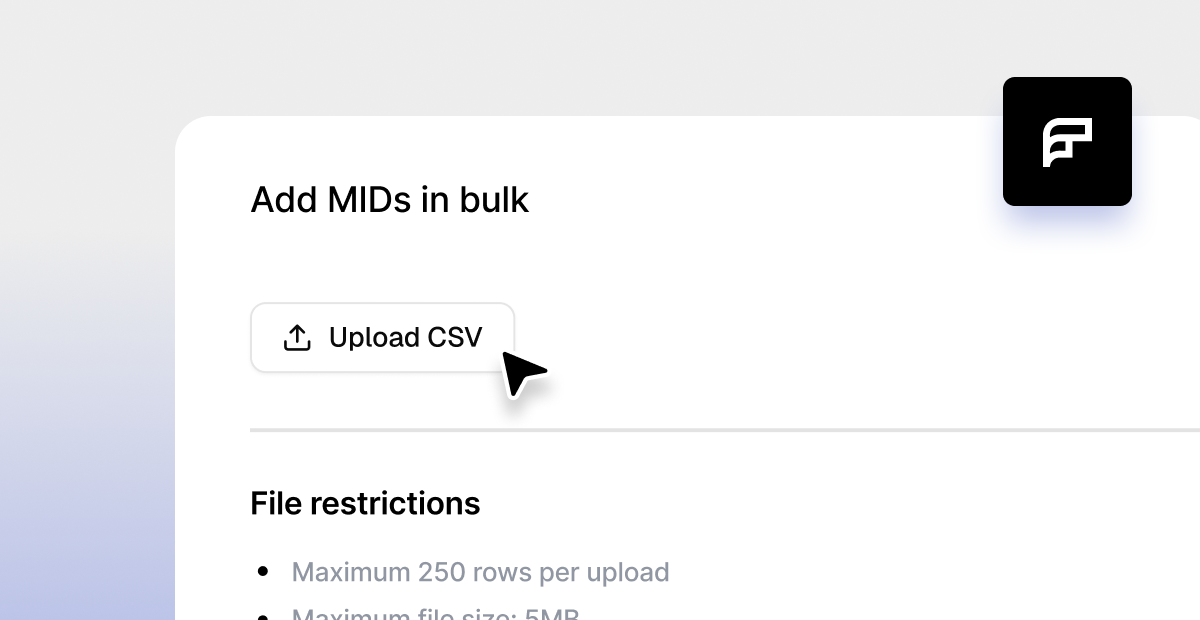
- Find the Shortcut: Navigate to either the MIDs or MID Requests page in your Dashboard and look for the new “Add MIDs in Bulk” button.
- Download & Fill: Download our standardised CSV template. It’s pre-formatted to ensure you know exactly what data is needed.
- Upload & Relax: Upload your completed file. Our system performs real-time validation, catching any formatting errors or missing data before you hit submit.
Note: By using the CSV template, you ensure your data integrity is 100% accurate before it ever hits our system.
Best Practices & Success Checklist
To ensure your bulk requests are processed instantly and without errors, keep this checklist in mind before you upload:
- Use the Official Template: Always download a fresh copy of the CSV template from the Dashboard. Avoid using your own spreadsheets, as the column headers must match our system exactly.
- Keep it Clean: Ensure there are no hidden formulas, special symbols, or emojis in your data fields.
- Validate Mandatory Fields: Double-check that essential columns—like Merchant Name and ID—are fully populated for every row.
- Save as CSV: Ensure your file is saved specifically in .CSV format (not .XLSX or .PDF) before uploading.
The Technical Essentials
To keep the process running smoothly and securely, we’ve optimised the tool with the following specifications:
- Maximum Capacity: Up to 250 rows per CSV upload.
- File Size Limit: Maximum 5MB.
- Data Integrity: Real-time validation for every row ensures a smooth submission.
Ready to Get Started?
You can start using Bulk MID Actions today. For a deep dive into formatting requirements and step-by-step instructions, please refer to our Bulk MID Actions Documentation
If you have specific questions about how this fits into your current operations, your dedicated Customer Success Manager (CSM) is standing by to help.